OpenClaw, formerly Clawdbot and Moltbot, is a self-hosted AI assistant you run on your own device or server and use through chat apps you already know.
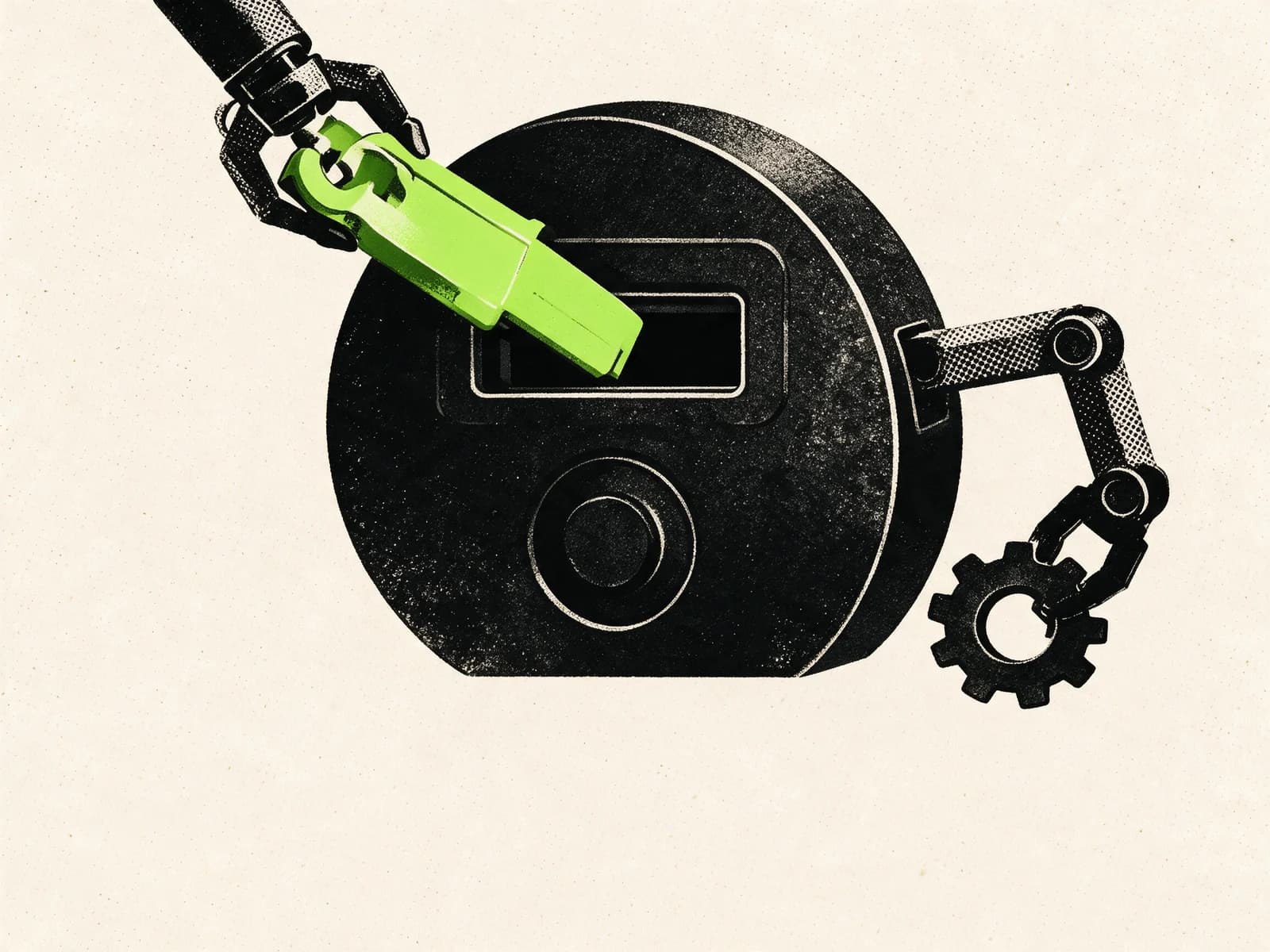
The main difference from a normal chatbot is that OpenClaw can take actions through tools and integrations, not just answer questions.
OpenClaw addresses the gap between generating an answer and completing a task. It can turn chat instructions into actions while you control its tools, permissions and access.

Quick take: OpenClaw connects an AI model to tools such as email, calendars, files and messaging. Self-hosting gives you more control over data and permissions, but you are responsible for securing and maintaining the system.
What OpenClaw can do
Most people’s first AI experience is a chatbot: you ask a question, it answers, and you copy-paste the output into email, a document, or a spreadsheet. That is useful, but it is still manual work.
An “AI assistant that actually does things” is different because it can:
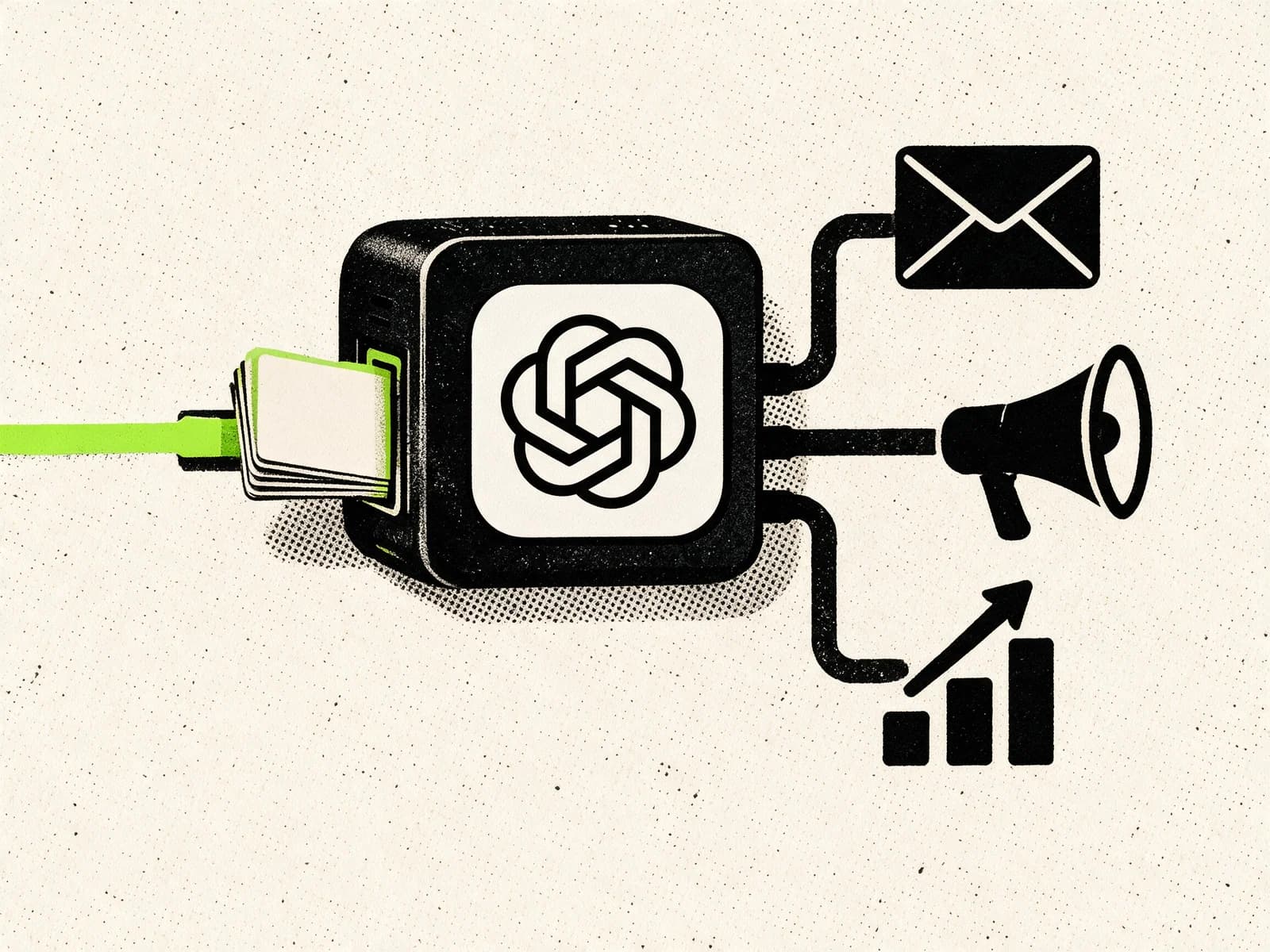
- Use tools: messaging, calendars, email, files, a browser and internal APIs
- Take actions: draft and send messages, schedule meetings, update files and run approved commands
- Live where work happens: inside chat channels, not just a web tab
OpenClaw is built around this action layer. What it can do depends on which tools you connect and what permissions you allow.
What OpenClaw is and is not
OpenClaw is
- A self-hosted AI assistant platform you run on a laptop, homelab or VPS.
- Multi-channel: it can operate through chat platforms listed in its repository, including WhatsApp, Telegram, Slack and Discord.
- Tool- and extension-driven: you extend it by enabling tools and installing skills.
- Permissioned by design: it documents pairing, allowlists, and policies to limit who can talk to the assistant and what it can do.
OpenClaw is not
- Just a chatbot: the point is outcomes via actions, not only better answers.
- Only a copilot inside one app: it is designed to work across tools and channels, not just a single product surface.
- Only a developer framework: it includes onboarding and a dashboard so non-devs can operate it, even if advanced setups still benefit from technical help.
How OpenClaw works
You do not need to memorize OpenClaw’s architecture to use it well. You do need a simple mental model of what is talking to what, and where risk lives.
Model selection
OpenClaw supports different model providers. Its model documentation explains how to configure a primary model and fallbacks.
It can also use self-hosted models through an OpenAI-compatible API, including models served through Ollama.
Tools and actions
Tools are how the assistant moves from text to work. Depending on what you enable, that can include messaging actions, calendar/email actions, file read/write, browser control, and command execution. This is also where permissions matter most.
Skills
Skills bundle reusable instructions and scripts. They can speed up setup, but third-party skills should be treated like code. A VirusTotal investigation documented malicious skills and social-engineering installation flows.
If persistent memory and agent-created skills matter more than ecosystem size, our Hermes Agent guide covers the main alternative.
Permissions and the Gateway
OpenClaw runs a Gateway service and provides a Control UI for setup and management. OpenClaw’s security documentation explains DM policies such as pairing and allowlists, along with a security audit command for risky configurations.

Hosted vs self-hosted
| Topic | Hosted AI assistants | Self-hosted with OpenClaw |
|---|---|---|
| Setup | Fastest start | More setup and maintenance |
| Data/control | Provider-controlled storage and policies | You control runtime, storage, and access decisions |
| Customization | Often limited to what the product exposes | Deeper customization via tools, skills, and config |
| Security | Shared responsibility, provider guardrails | More control, but more ways to misconfigure |
| Cost model | Subscription-based | Infrastructure plus API usage or local hardware |
| Best fit | Convenience-first workflows | Teams that need more control over data and automation |
Use cases for OpenClaw
OpenClaw suits repeatable workflows where permissions and data handling need tighter control.
If you prefer a managed cloud computer instead of self-hosting, compare it with our Grok Bot guide.
These workflows are practical starting points.
Inbox triage and follow-ups
- Summarize new messages into 5 bullets
- Draft replies for approval
- Create a “needs my input” list
- Escalate anything from VIP senders
Tip: start with a dedicated mailbox or limited-scope credentials so mistakes do not hit your primary account.
Calendar and meeting coordination
- Propose meeting times based on availability
- Generate agendas from recent context
- Send confirmations to participants
Marketing ops: content pipelines
- Turn rough notes into publish-ready drafts
- Create variant copy for ads and landing pages
- Maintain a brand glossary and banned phrases
- Draft weekly changelogs from internal updates
Lightweight sales and client support automation
- Draft outreach emails based on a prospect’s website
- Generate call prep briefs
- Route urgent requests to the right channel
- Create follow-up tasks and reminders
Operations and IT runbooks
- Summarize incidents from logs and propose next steps
- Run read-only diagnostic commands
- Prepare remediation steps for a human to execute
This is where you want the tightest permissions and the strongest sandboxing.
What you need to self-host OpenClaw
OpenClaw’s installation documentation covers macOS, Linux and Windows, with WSL2 recommended on Windows. It lists Node.js 22+ as a requirement.
Deployment options
- Your laptop/desktop: simplest, but be careful mixing personal browsing and agent credentials.
- Dedicated mini PC / homelab: a strong “always-on” option without public exposure.
- VPS: convenient uptime, but higher exposure risk if you expose it directly. Prefer private network access where possible.
Tip: If you want a straightforward VPS that’s powerful and affordable, Hetzner is a solid option. New accounts get a ~$20 credit via our referral link.

Hosted and local model options
Hosted models are the easiest and usually most reliable option for tool use.
- Best choice if you want consistent quality, fast responses, and minimal setup.
- Use a fast, cost-efficient model for routine work such as summaries, drafts, routing and light analysis. Check the current provider options rather than hard-coding one model into every workflow.
- Use a stronger reasoning model for difficult work such as complex coding, long multi-step workflows and edge cases. Reserve the higher-cost option for tasks that genuinely benefit from it.
- Use a fast, lower-cost model by default and switch to a stronger model only when the task requires it.
Using a model router
- A model router like OpenRouter lets you access many models through one API.
- This makes it easy to switch models, add fallbacks, or route “easy” vs “hard” tasks to different models without changing your whole setup.
- This pairs well with OpenClaw’s model selection and fallback logic.

Local models are mainly for advanced users.
- Best when maximum data control matters and you are willing to trade speed and simplicity for privacy.
- Requires adequate CPU/GPU resources and more tuning.
- Tool-use reliability varies a lot with local models, so it’s safer to keep tools restricted at first and expand gradually once behavior is predictable.
Storage and backups
Plan for where configs, logs, transcripts, and any cached files live.
Back up configuration and workflows. Exclude raw secrets unless the backup is encrypted and access-controlled.
Simple sizing guide
These are practical starting points for a single-user setup.
They are estimates, not official requirements, and real needs depend on concurrency, enabled tools, and whether you run local inference.
- Hosted model orchestration: 2-4 vCPU, 4-8 GB RAM, 10-30 GB SSD
- Heavier tool usage: 4-8 vCPU, 8-16 GB RAM, 30-100 GB SSD
- Local model inference: small models often need ~8-12 GB VRAM; smoother tool-use often benefits from ~16-24+ GB VRAM; CPU-only is possible but slow
OpenClaw’s docs note that weaker/over-quantized models can be more vulnerable to prompt injection and unsafe behavior when tools are enabled.
Security and privacy considerations
OpenClaw can take real actions, which makes it riskier than a normal chatbot. Secure it through permissions, isolation and explicit allowlists, not prompt instructions alone.
Main security risks
- Prompt injection: a message or webpage tries to push the model toward unsafe actions.
- Skill supply chain: a third-party skill contains malicious or poorly reviewed code.
Practical security checklist
- Run
openclaw security auditafter configuration changes. - Use pairing or allowlist policies for direct messages and group chats.
- Isolate sessions when multiple people can message the bot.
- Sandbox agents with file, browser or shell access.
- Explicitly allow tools instead of enabling everything by default.
- Use a dedicated browser profile and separate credentials.
- Encrypt backups that contain sensitive configuration.
- Install skills only from trusted sources and review them first.
A practical 2-day setup plan
The goal is to get something useful fast without creating a security incident. Start with one channel, two tools, tight permissions, and one workflow you can measure.
Day 1: install and lock down access
- Follow the official getting-started guide, confirm the Gateway is running, then open the dashboard.
- Pick your model approach: hosted models are usually the easiest starting point for reliable tool-use.
- Connect one chat channel and set DM access to pairing/allowlist.
- Run the security audit and fix obvious issues before enabling extra tools.
Day 2: connect 2 tools and build 1 workflow
- Connect 2 useful tools, such as email and calendar or chat and files.
- Start with read-only access and require approval before actions.
- Build 1 workflow, such as a Monday inbox summary with draft replies and an action list.
- Measure outcomes: minutes saved, reduced back-and-forth, error rate, and how often you had to step in.
Document the actions OpenClaw may take and the first workflow that works reliably. This makes later expansion easier to review.
FAQ
What is OpenClaw?
OpenClaw is a self-hosted AI assistant you run on your own device or server, designed to operate through chat apps and take tool-based actions under your control.
Do I need a GPU to use OpenClaw?
Not if you use hosted model providers. A GPU mainly matters if you want local model inference.
Can OpenClaw run fully offline?
Potentially, if you use local models and avoid online tools. Email, calendars and chat still require internet access.
Is it safe to expose OpenClaw to the public internet?
It can be risky. OpenClaw’s docs emphasize allowlists, pairing, sandboxing, and careful network exposure. Prefer VPN/tailnet access first.
What is the difference between tools and skills?
Tools are action interfaces for messaging, files, commands or browser control. Skills package scripts and instructions, so they should be reviewed like code.
How do I reduce the risk of malicious skills?
Install only from trusted sources, review skill contents, avoid opaque terminal commands, keep tools sandboxed, and re-run security audits after changes.
What should a company do before deploying OpenClaw?
Start in a non-production environment, use dedicated credentials, restrict inbound access, define allowed actions and prepare an incident response plan.